Transferring Push Subscriptions for Safari
This article describes transferring push subscriptions configured for the Safari browser to the Altcraft Platform.
Transferring Safari subscriptions is only possible if they were created with a certificate and key from your Apple Developer account. You must have access to this account.
Step 1. Setting Up the Resource in the Altcraft Platform
Set up the resource for Web Push notifications and activate the Apple Safari provider. For more details, see the article Resource and Website Setup.
Step 2. Preparing the CSV File with Subscriptions
Export Safari subscription identifiers from the external service to a CSV file.
The file must contain at least two columns:
- Column with push tokens — Safari subscription identifiers;
- Column with provider — each row must contain the value Safari (provider identifier from the table).
Example CSV file structure:
push_token,provider
token_abc123...,Safari
token_def456...,Safari
token_ghi789...,Safari
Step 3. Importing Profiles with Subscriptions
Create or select a suitable database and in the drop-down list, click Import Customer Profiles. | 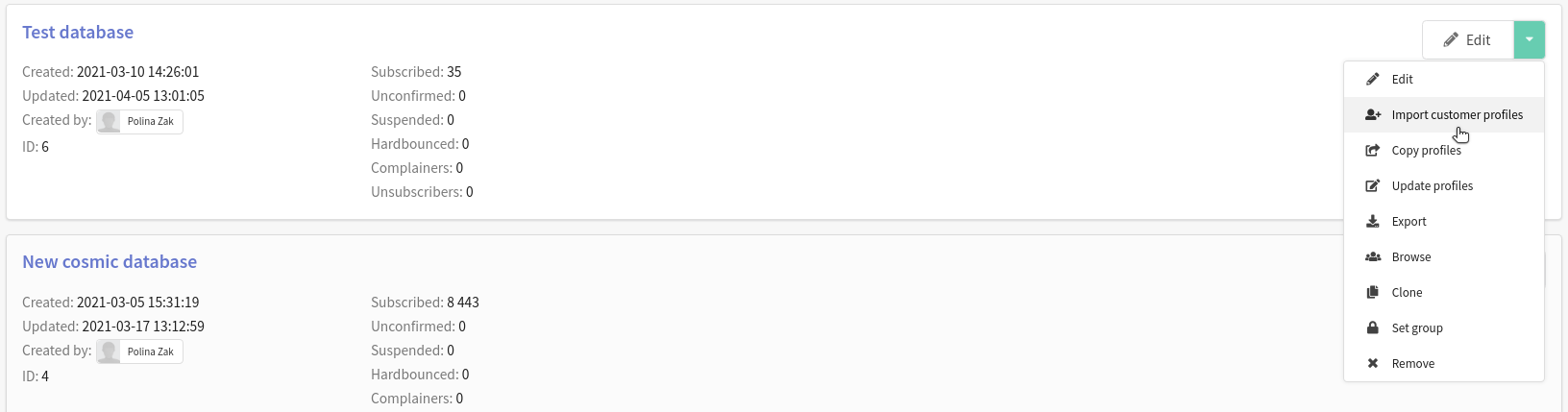 |
Select the import method — File. Upload the CSV file with subscriptions. | 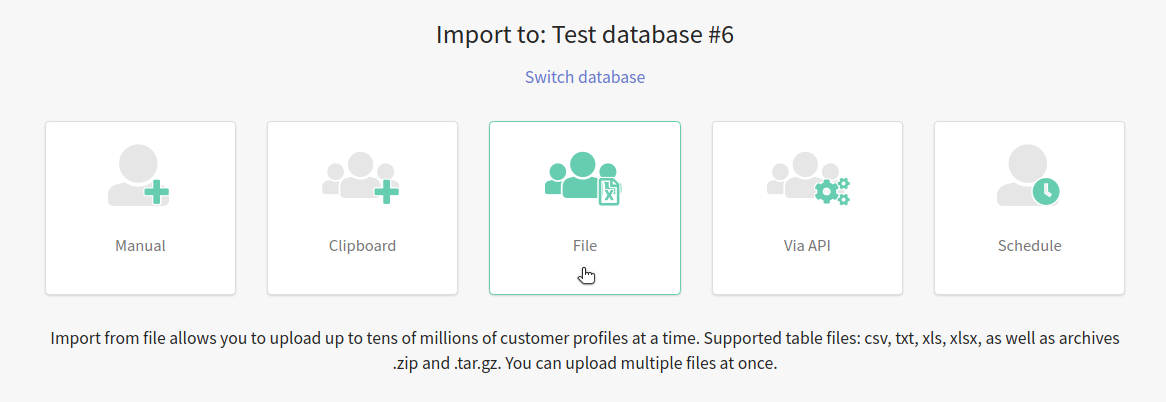 |
Click Subscription Search Mode and select Search by Push Subscription. | 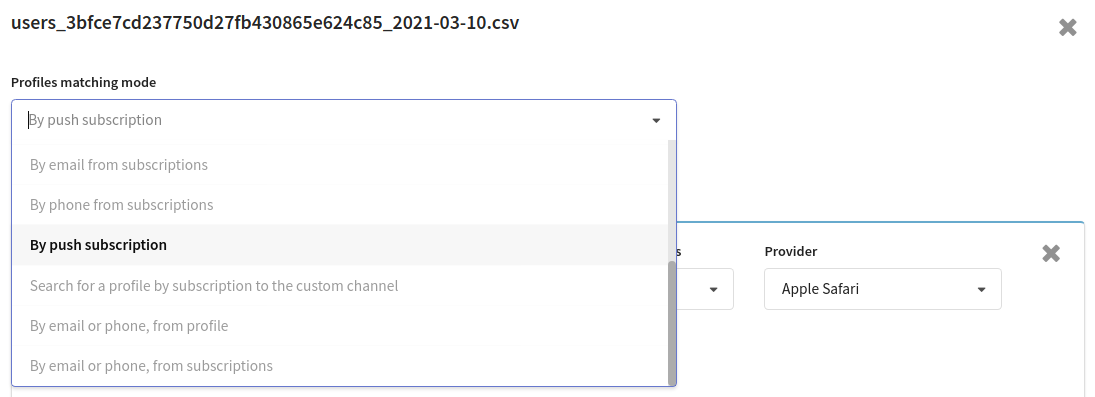 |
If the CSV file contains data for matching existing users (e.g., email, phone), select the corresponding profile search mode.
Click Add Subscription and configure the parameters:
| 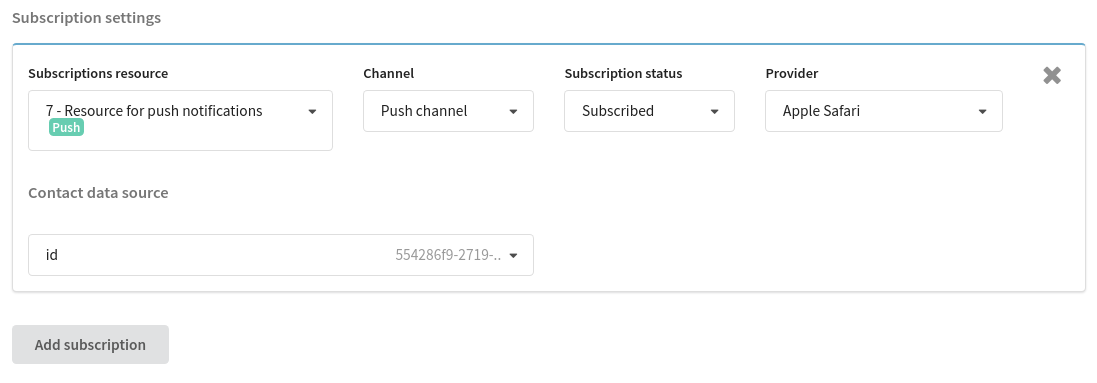 |
Configure column mapping:
| 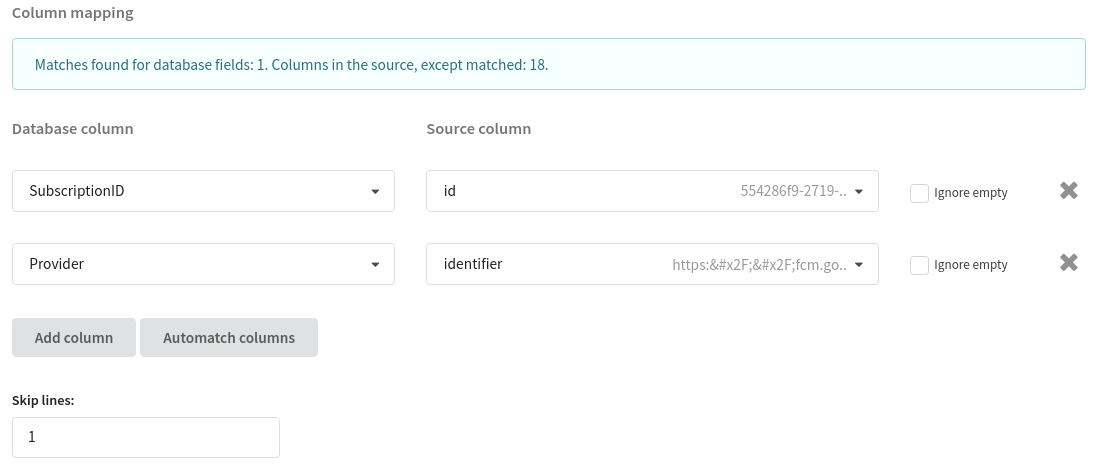 |
In the Skip Lines field, enter 1 if the file contains headers.
Click Import in the upper right corner of the screen. After the import is complete, open the database and the Subscriptions tab — the new profile subscriptions for push notifications will be displayed there. | 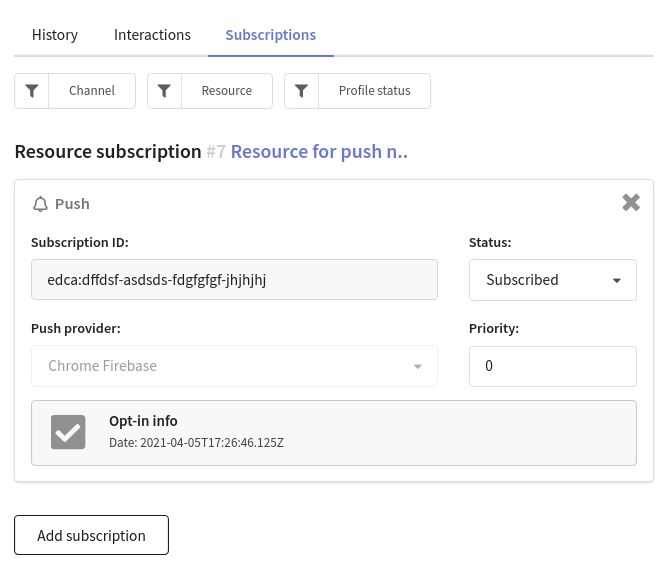 |